
Uptime monitoring
Uptime monitoring checks whether your site or server is reachable and measures its response time. It is automatically enabled on the Professional, Business, and Enterprise plans, and during the 14-day free trial.
How to disable uptime monitoring
Section titled “How to disable uptime monitoring”- Open the project you'd like to manage from the list in the left sidebar.
- Click the pencil next to the uptime status in the Uptime panel on the right.
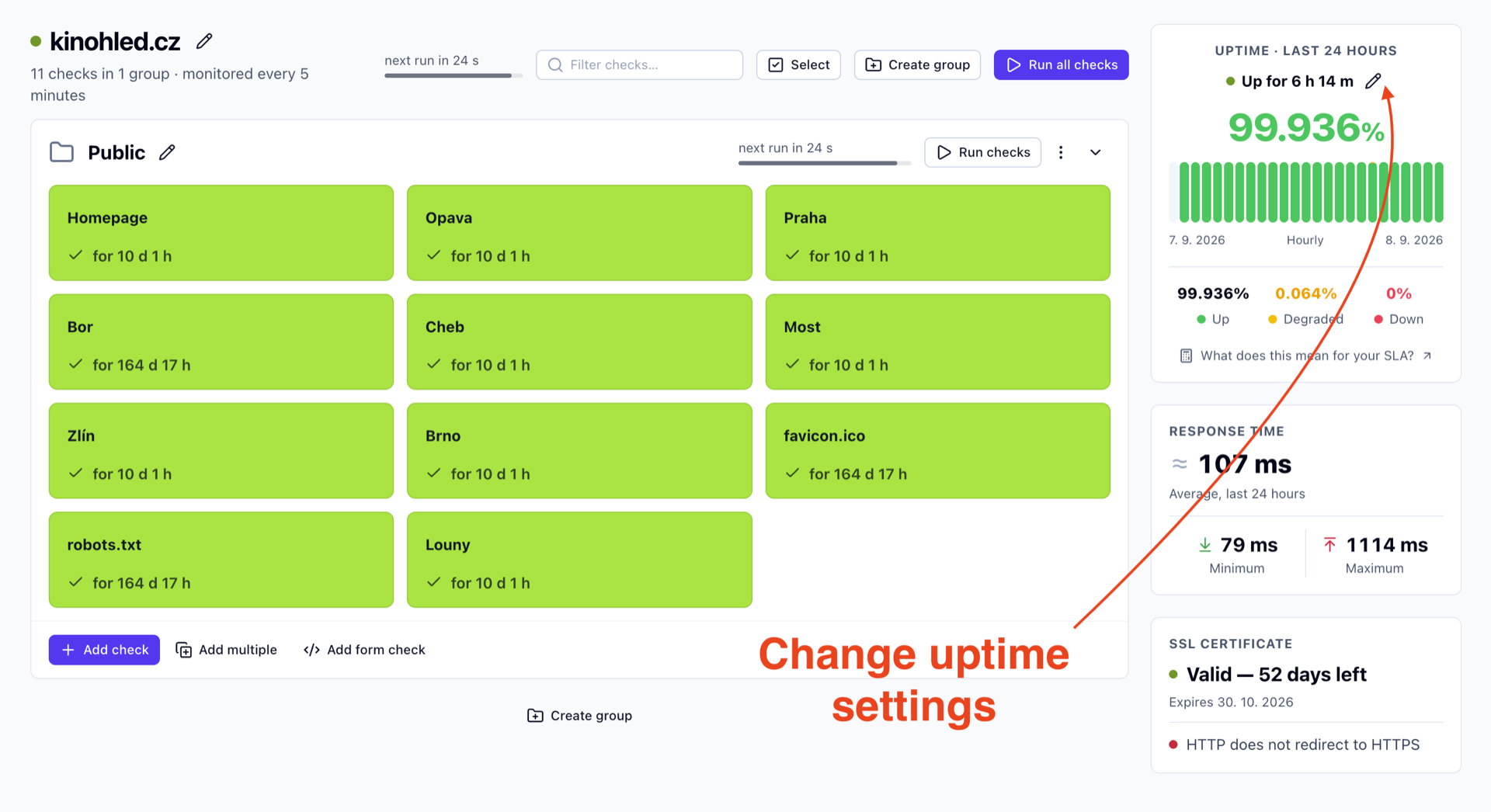
- In Uptime settings, pick
disabledfrom the Uptime monitoring menu and save.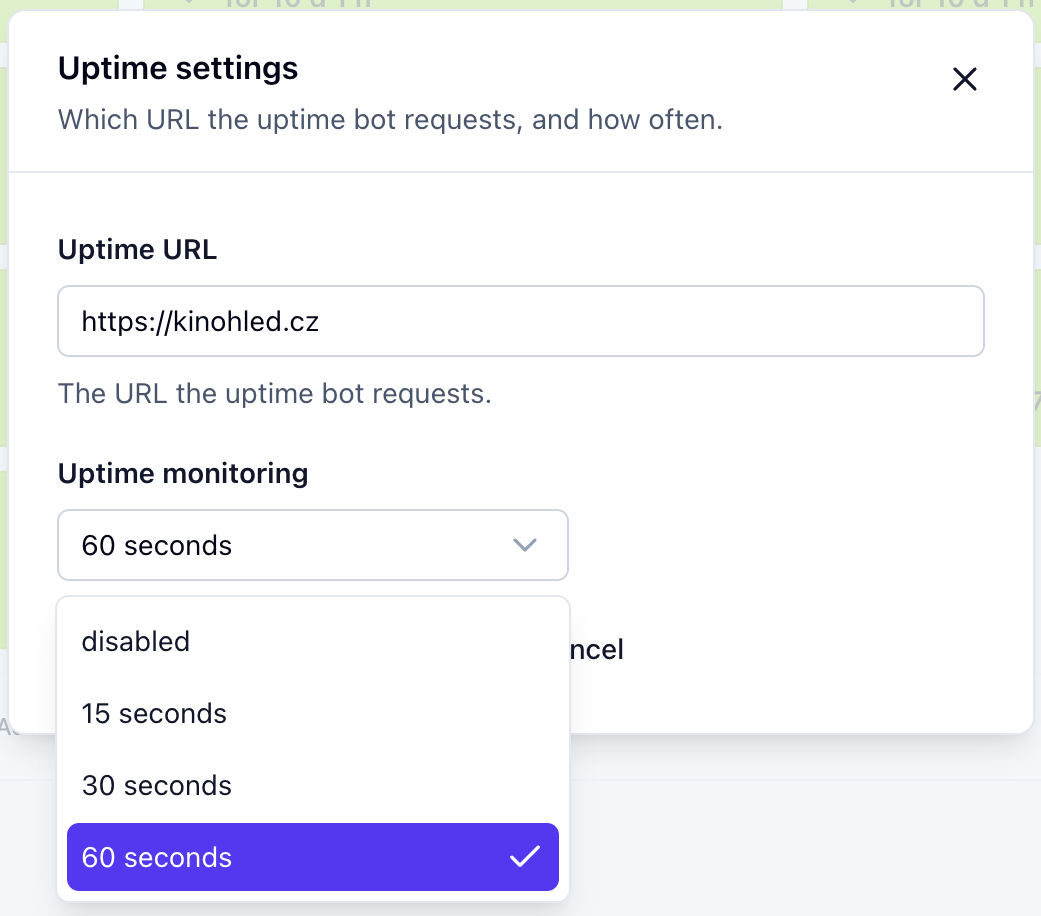
Why does Testomato say my site is down when it's not?
Section titled “Why does Testomato say my site is down when it's not?”Testomato may occasionally report your site as down or unavailable even when everything looks fine when you investigate yourself. There are a few reasons this can happen.
Monitoring is done from an external location
Section titled “Monitoring is done from an external location”Testomato Bot tests your site from outside the local network where your server is hosted. This means it is subject to the same network conditions as any external visitor, including latency — the time it takes data to travel from one point to another.
In some cases, a brief network disruption between Testomato's monitoring location and your server can make your site appear unreachable, even if it is functioning normally for users in other locations.
Testomato retests before alerting
Section titled “Testomato retests before alerting”To reduce false alerts caused by short-term issues, Testomato automatically retests your project a second time before sending a downtime notification. You will only receive an alert if the second test also fails.
More monitoring locations
Section titled “More monitoring locations”Testomato is continuously adding monitoring locations to reduce the influence of any single connection on your results. If you are seeing frequent false timeouts, this may improve over time as additional locations are added.