
Cloudflare
Cloudflare is the most common reason a check fails on a site that is perfectly healthy. It can mistake monitoring traffic for data scraping, and the frequency Testomato checks at — every minute, sometimes several URLs at once — looks like exactly the pattern its bot and rate-limiting rules exist to stop.
Access denied (Error 1020)
Section titled “Access denied (Error 1020)”A blocked check usually comes back as an Access denied (Error 1020) response:
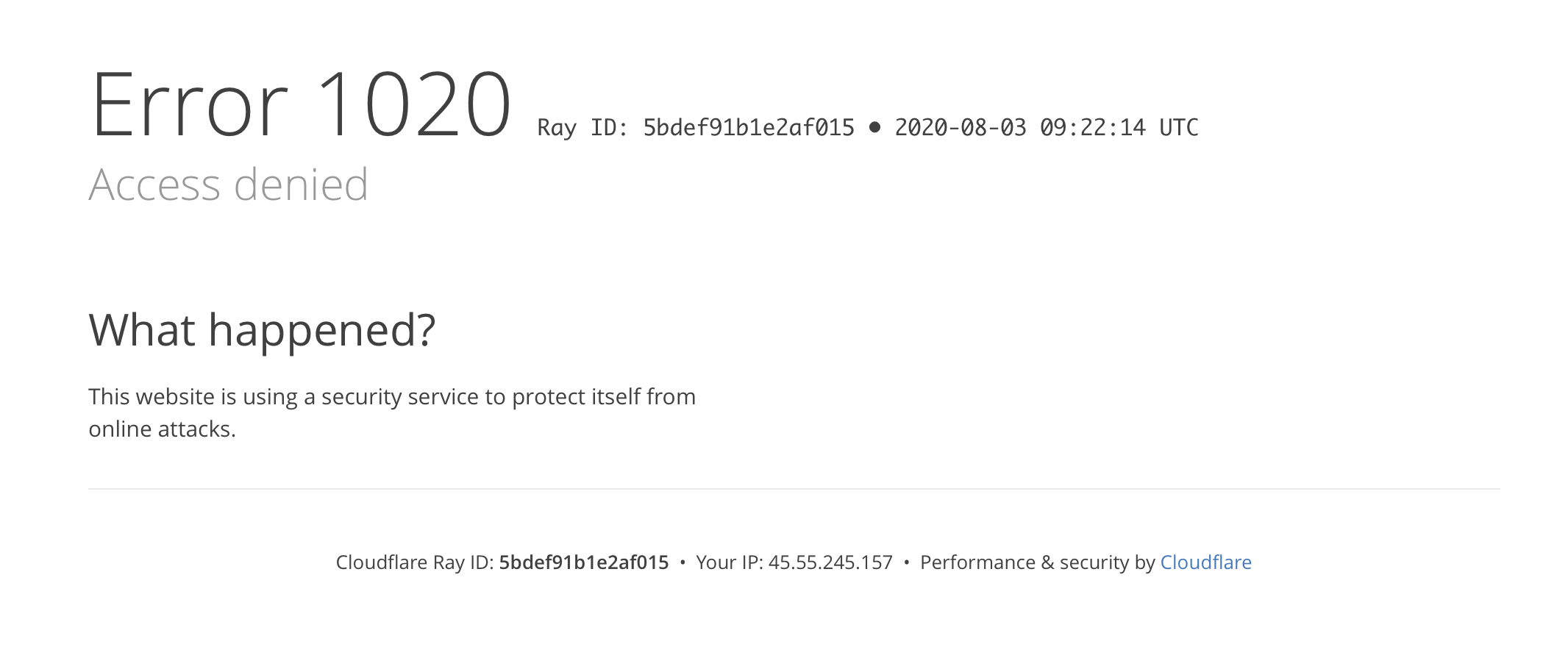
Error 1020 means Testomatobot was blocked by a WAF custom rule. The rule is one of yours, so the fix is to find it and add an exception. Other blocks show up as a challenge page, a 429, or one of the other 1xxx error codes — the way to identify them is the same.
Finding the rule
Section titled “Finding the rule”- Log in to the Cloudflare dashboard and select your domain.
- Go to Security → Events (Security Events).
- Filter by the Ray ID from the error page, or by one of the Testomato IP addresses, to find the blocked request.
- The event names the service and the rule that blocked it — a custom rule, a managed rule, rate limiting or IP reputation.
Allowing Testomato through
Section titled “Allowing Testomato through”There are two ways to do it. Pick one.
IP Access Rules (simplest)
Section titled “IP Access Rules (simplest)”- In the Cloudflare dashboard, select your domain.
- Go to Security → WAF → Tools.
- Under IP Access Rules, add each Testomato address with the action Allow and scope it to the site or your whole account.
This exempts the addresses from the WAF, rate limiting and the IP reputation checks, but not from a custom rule that blocks them explicitly.
A WAF skip rule (more control)
Section titled “A WAF skip rule (more control)”A skip rule in Security → WAF → Custom rules overrides everything below it, including your own block rules:
-
Create a custom rule and place it above the rules that are blocking Testomato.
-
Use this expression, with the full list of addresses in the set:
(ip.src in {217.31.53.147 217.31.54.206 167.235.18.92}) -
Choose the action Skip and tick the components to bypass — at minimum All remaining custom rules, Rate limiting rules and Managed rules.