Status pages
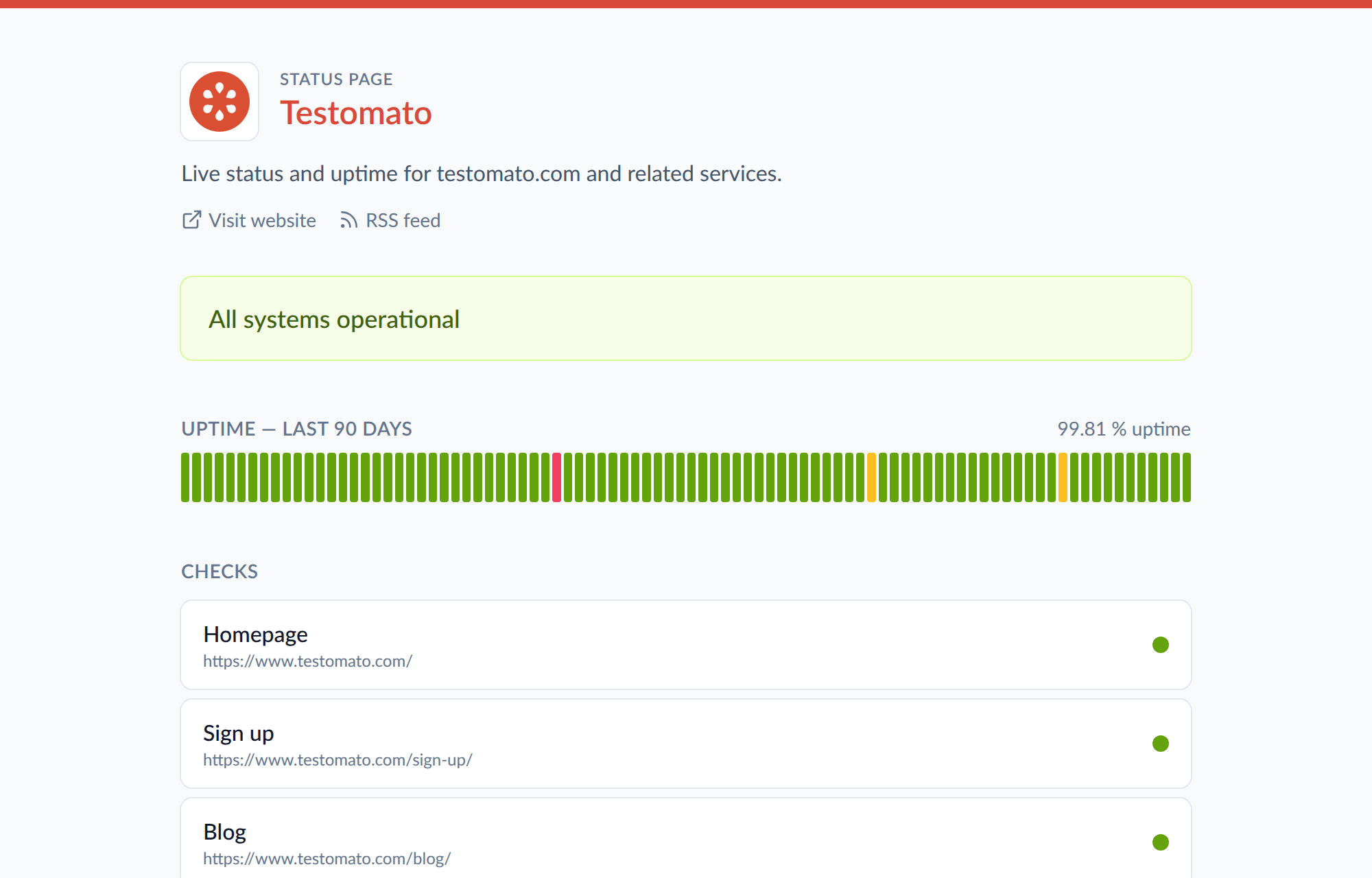
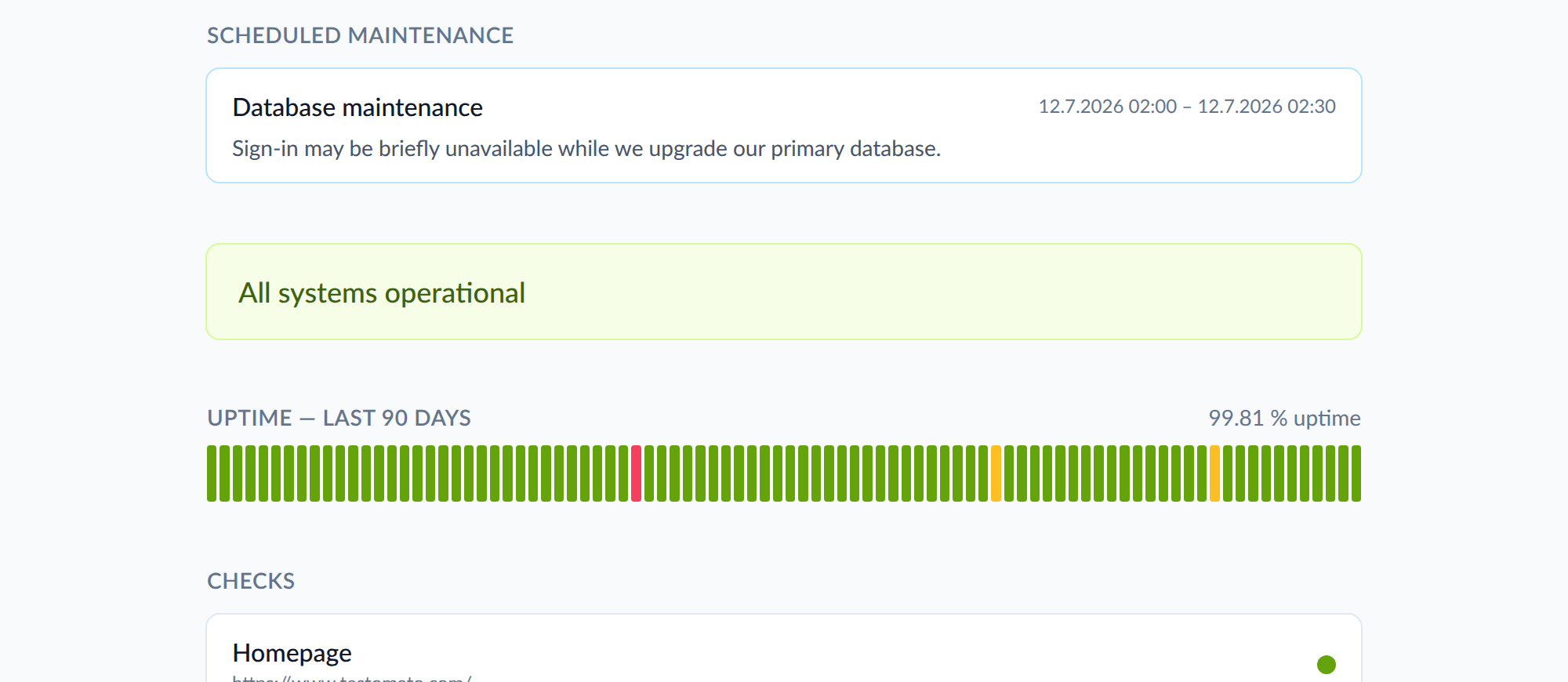
A status page is a public page at https://testomato.com/status/<address>. It shows a website's current status, its uptime for the last 90 days, the checks you choose, active incidents and scheduled maintenance.
Everything except scheduled maintenance comes from your monitoring and updates on its own.
The uptime history requires uptime monitoring to be enabled for the project.
Plan limits
Section titled “Plan limits”| Plan | Status pages |
|---|---|
| Starter | 1 |
| Professional | 5 |
| Business | 25 |
| Enterprise | Unlimited |
The limit counts the status pages you created, under your own plan. If you were invited to someone else's project and have no plan of your own, you can't create one.
If you reach the limit, you will not be able to create additional status pages, but your existing pages will continue working.
Create a status page
Section titled “Create a status page”You need the Edit Project Settings permission on the project.
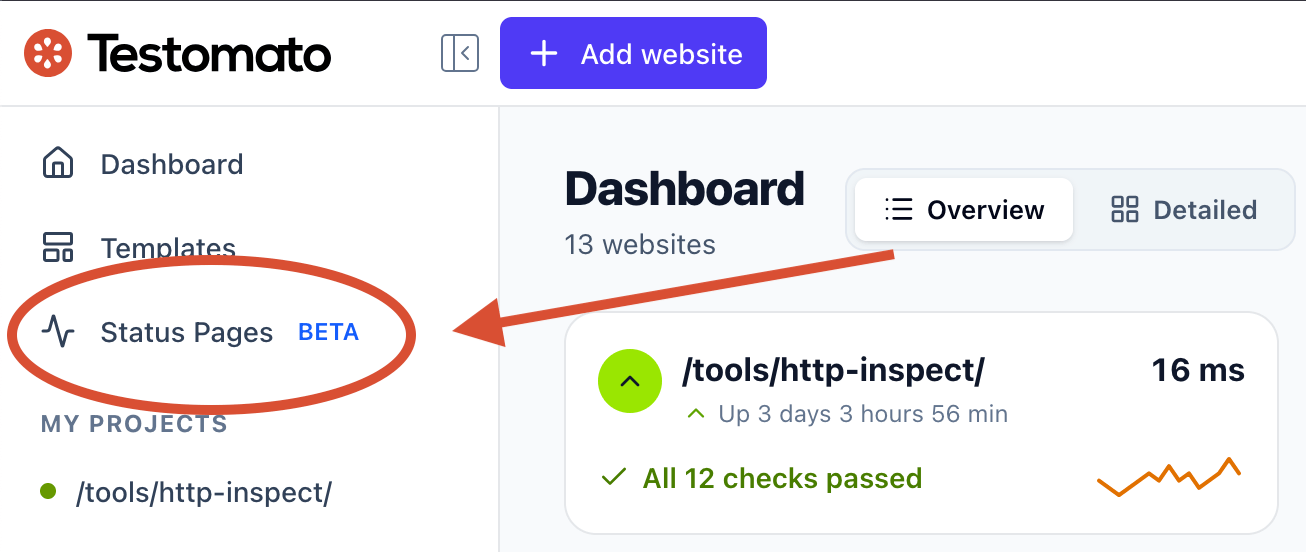
- Open Status Pages in the left menu.
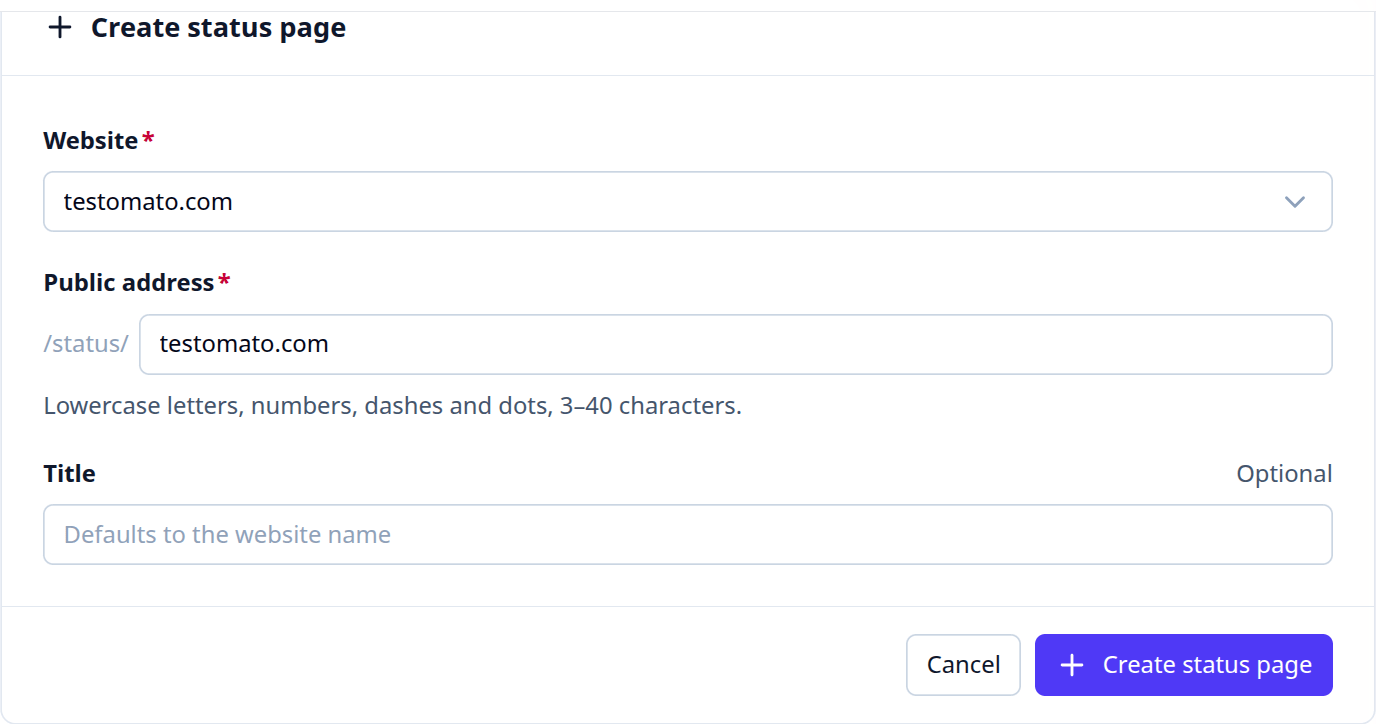
- Click Create status page.
- Choose the Website.
- Check the Public address. It's filled in from the website name.
- Optionally enter a Title. Without one, the page uses the website name.
- Click Create status page.
Once you create the page, you cannot change the website or public address.
Settings
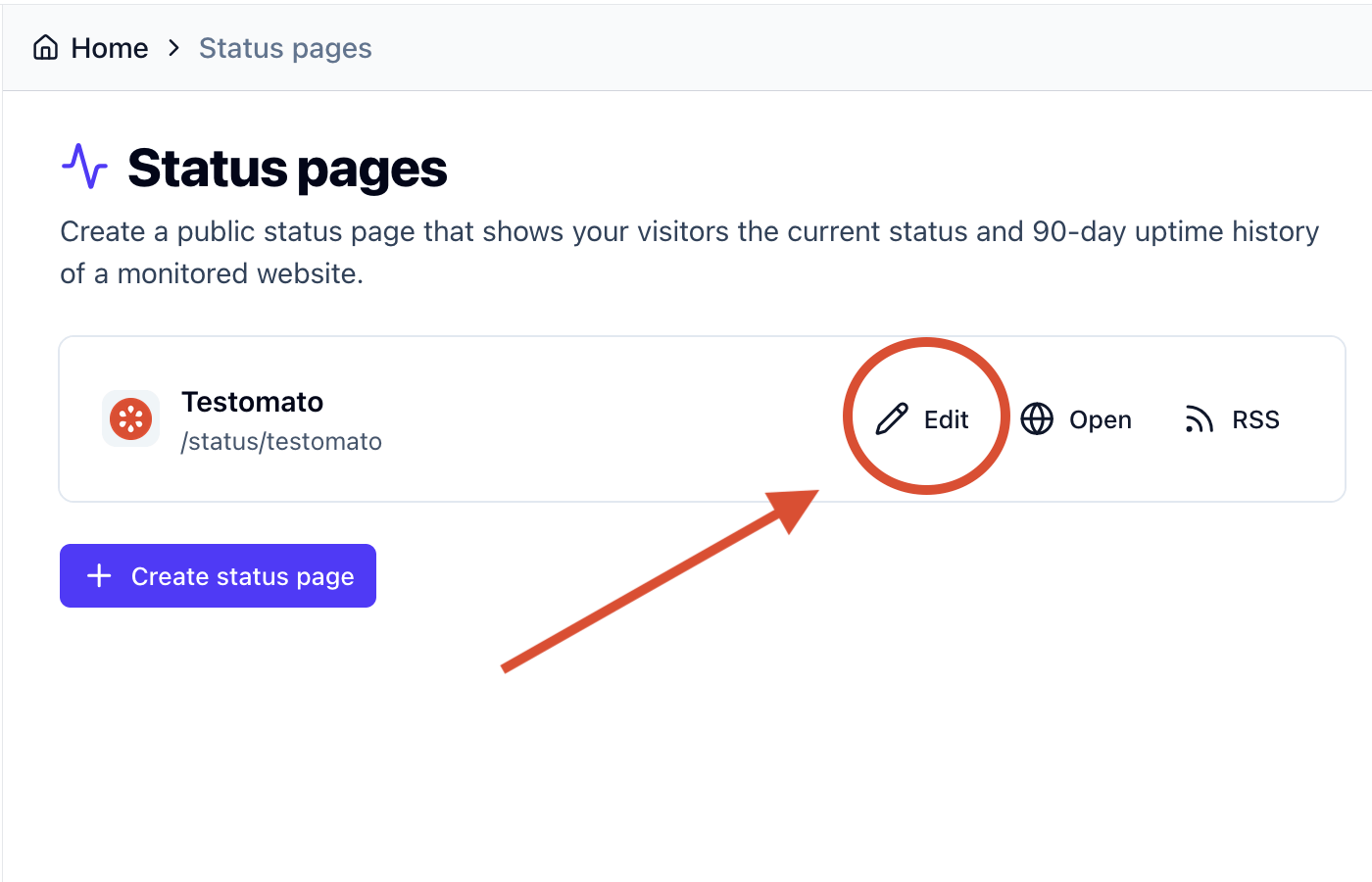
Section titled “Settings”Click Edit next to the page in the Status pages list.
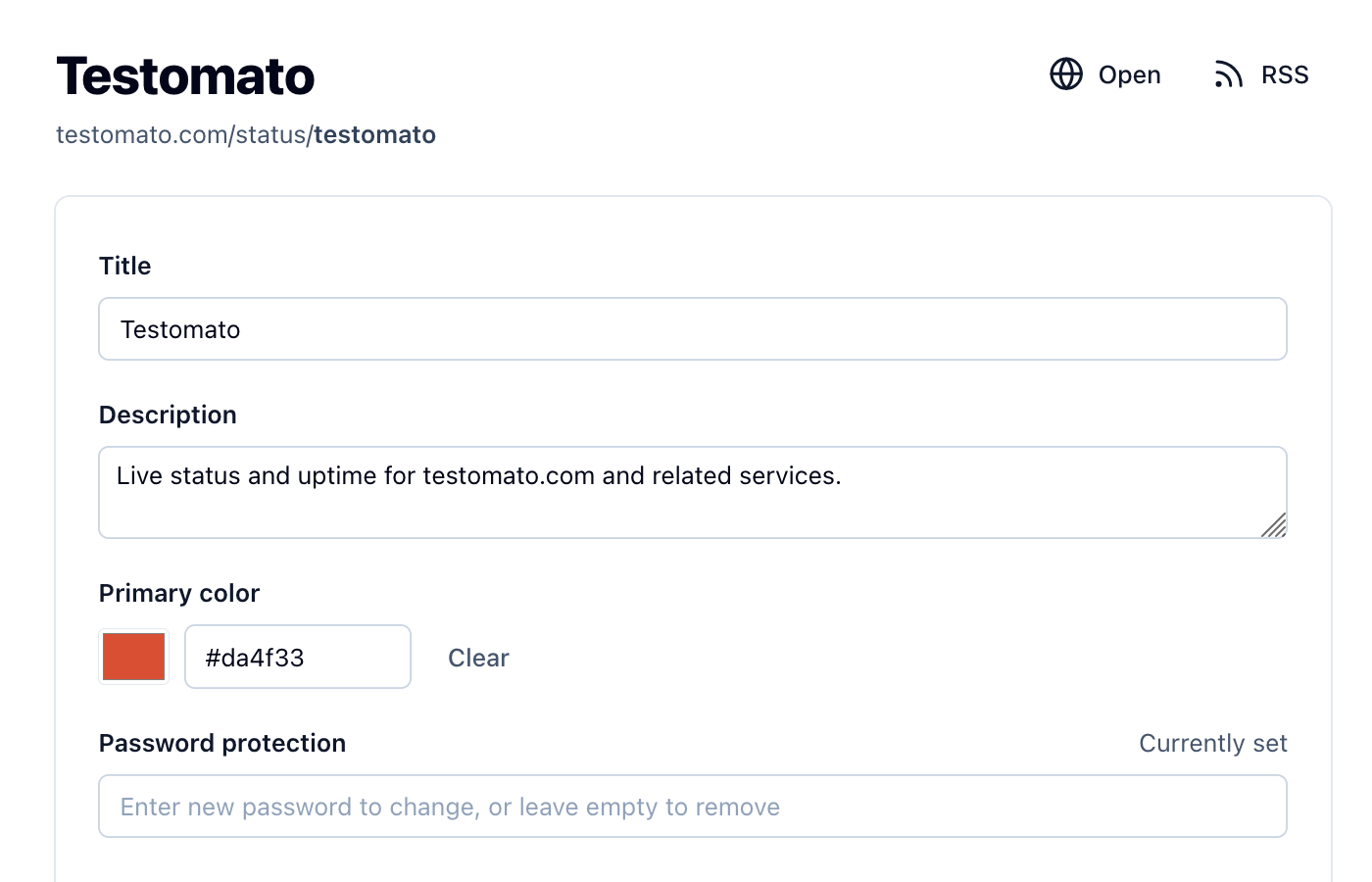
- Title and Description appear at the top of the page.
- Primary color matches the page to your brand. It sets the color of the title, the strip at the top of the page and its buttons. Enter a hex value such as
#2563eb, or click Clear to use the default. - Password protection: use it when the page is meant only for specific people, such as a client or your own team. Visitors must enter the password to see the page. The RSS feed isn't password protected.
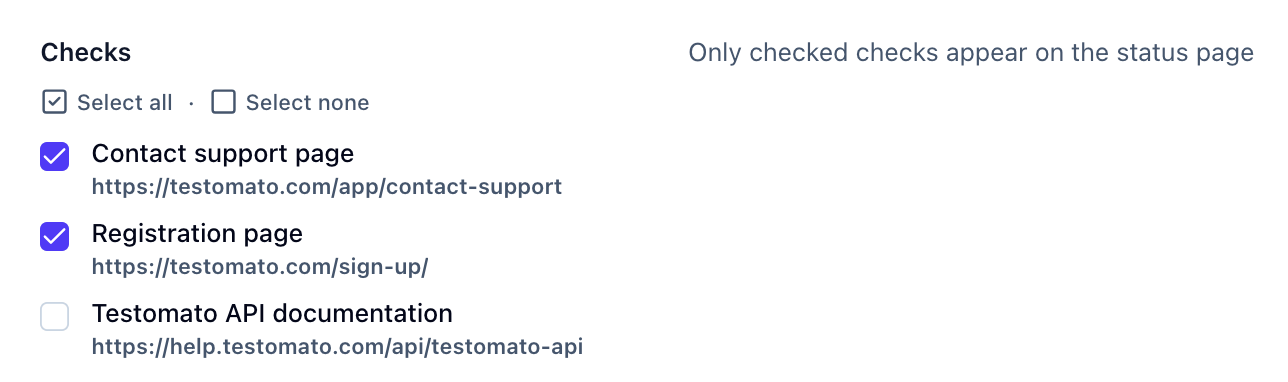
- Checks: only the selected checks appear on the page, and only their incidents are listed. Checks you add to the project later aren't selected automatically. The status banner and the uptime history always cover the whole project.
- Enabled: the switch next to Save turns the page on and off. While a page is disabled, visitors get a "page not found" error.
- Delete status page at the bottom removes the page permanently.
Scheduled maintenance
Section titled “Scheduled maintenance”Add planned work to the status page so visitors know about downtime in advance.
- On the edit page, click Add maintenance.
- Enter a Title and a Start time. End and Description are optional.
- Click Add maintenance.
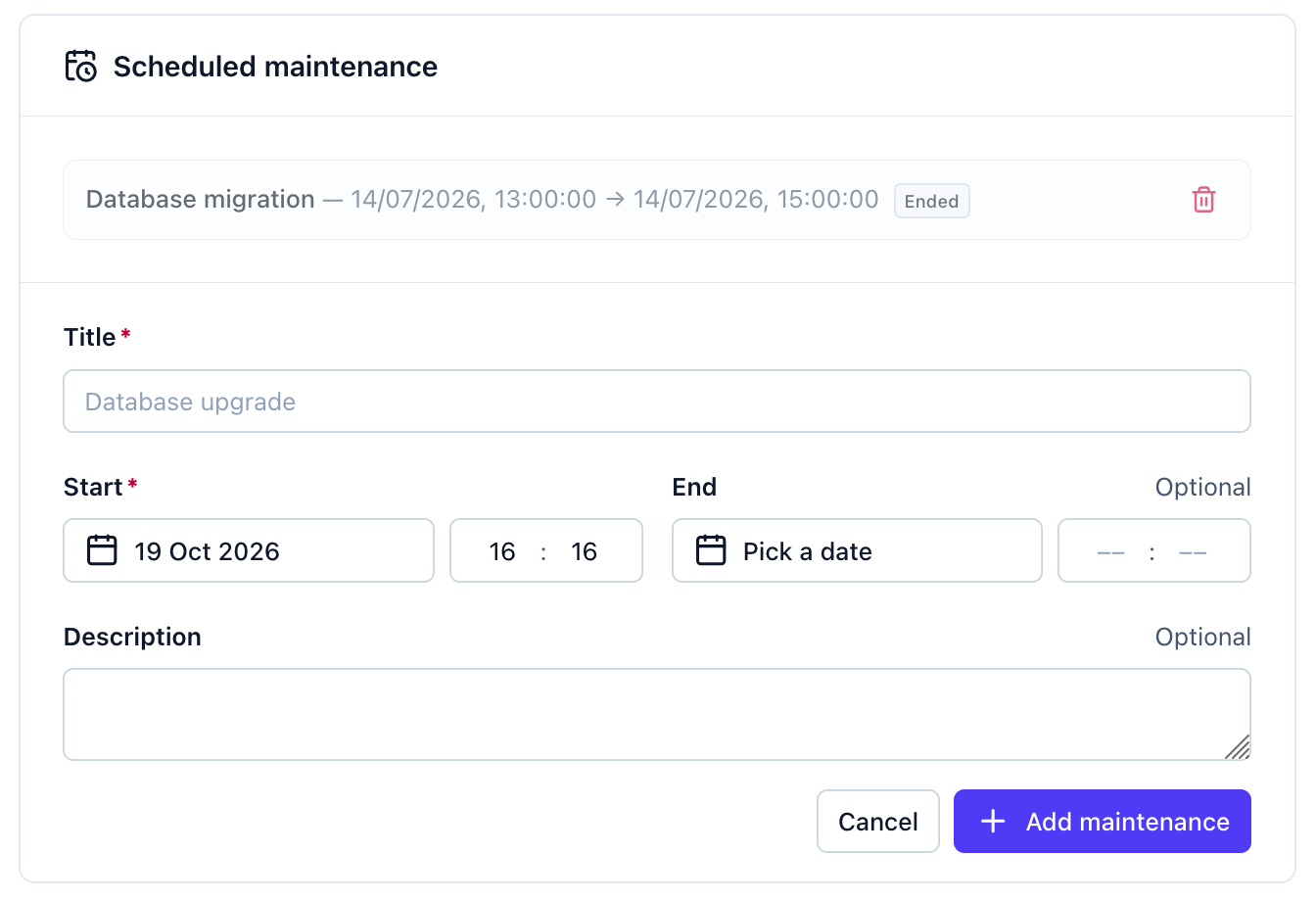
The maintenance appears at the top of the status page until its end time. Without an end time, it stays until you remove it.
You can't edit a maintenance entry. Remove it with the trash icon and add a new one.
Email updates and RSS
Section titled “Email updates and RSS”Visitors can subscribe by email at the bottom of the status page. They receive a confirmation email and get updates only after they confirm.
Subscribers get an email when an incident starts or is resolved on one of the selected checks. Every email has an unsubscribe link.
The RSS feed is at https://testomato.com/status/<address>/rss. It lists active and resolved incidents on the selected checks from the last 30 days.